

Emergency Quick Fix – Read This First:
- 🚨 “Temporarily Disable” Option Missing? You’re likely in the mobile app. Switch to desktop browser or mobile browser in desktop mode.
- 💾 Download Your Data NOW – Don’t lose memories! Use our instructions below.
- 🔗 Linked to Facebook? Deactivating Instagram WON’T affect Facebook unless you choose to disconnect both.
If you’re feeling overwhelmed by Instagram and the process of leaving seems confusing, you’re not alone. Many users hit a wall when they can’t find the deactivation option or worry about losing their photos forever.
This guide does what others don’t: we provide solutions for common errors, explain exactly what happens to your connected accounts, and give you a foolproof plan whether you need a break or want to leave permanently.
Critical First Step: Download Your Instagram Data
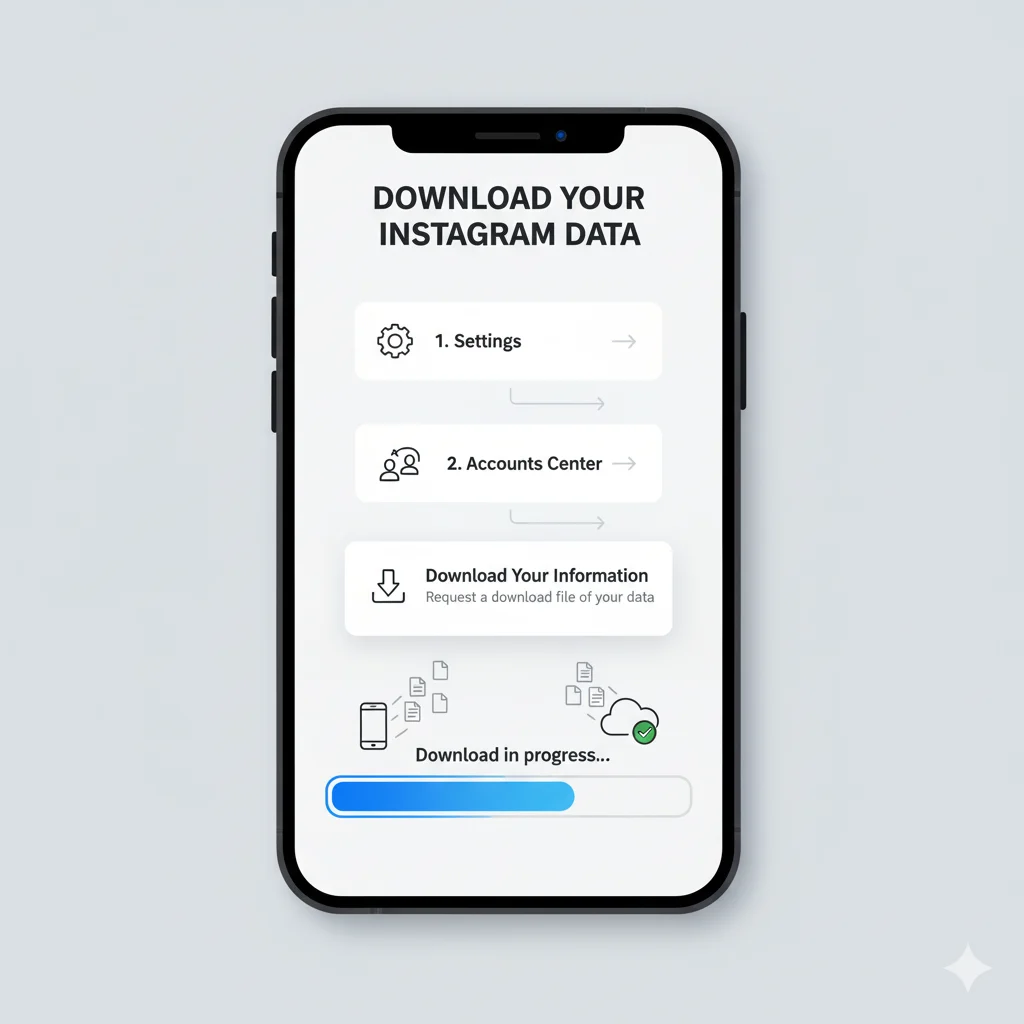
DO NOT SKIP THIS. Once you delete your account, your photos, videos, and memories are gone forever.
Step-by-Step Data Download Instructions:
- Open Instagram → Go to your profile → Tap ☰ menu
- Tap Settings and privacy → Accounts Center
- Select Your information and permissions → Download your information
- Choose Instagram → Select “All time” for date range
- Choose HTML for easy viewing or JSON for all data
- Tap Request download → You’ll get an email within 48 hours
Pro Tip: Request your data now and wait for the download link before deactivating. This ensures you don’t lose anything important.
Alt-text: Step-by-step screenshots showing how to download your Instagram data from the Accounts Center
Temporary Deactivation vs. Permanent Deletion: Choose Wisely
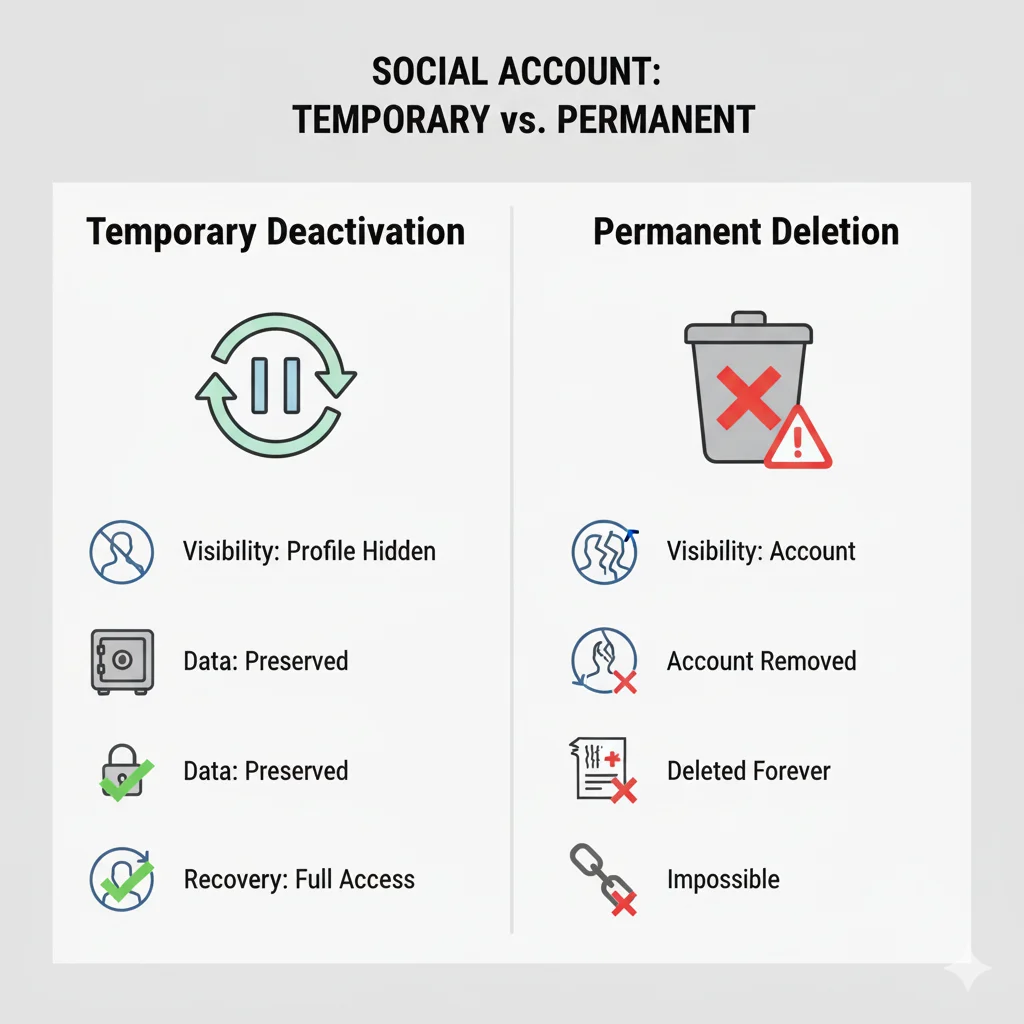
| Aspect | Temporary Deactivation | Permanent Deletion |
|---|---|---|
| Profile Visibility | Completely hidden | Permanently removed after 30 days |
| Your Data | Preserved by Instagram | Deleted forever after 30 days |
| Recovery | Login anytime to restore | Impossible after 30 days |
| Best For | Breaks, digital detox | Never returning, privacy concerns |
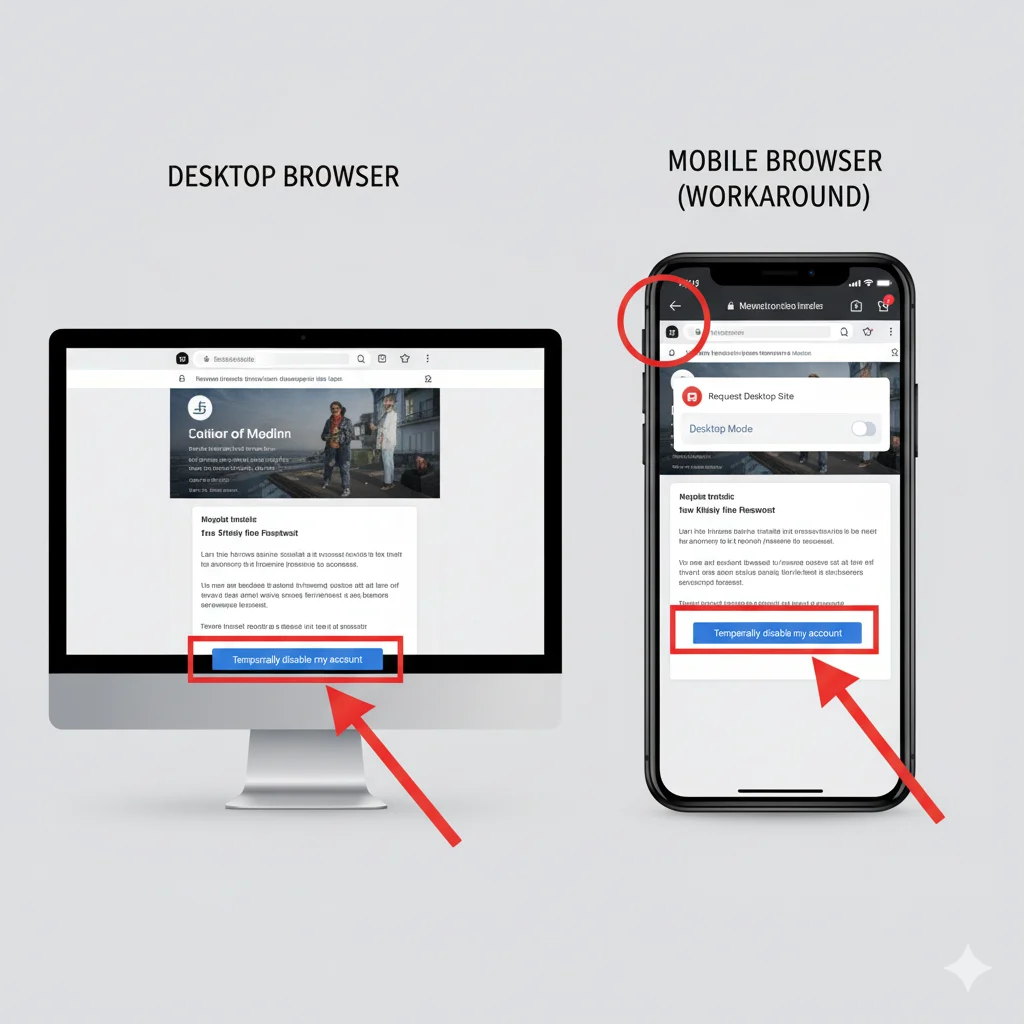
Still unsure? Choose Temporary Deactivation. It’s risk-free and reversible.
How to Temporarily Deactivate Instagram (2024 Methods)
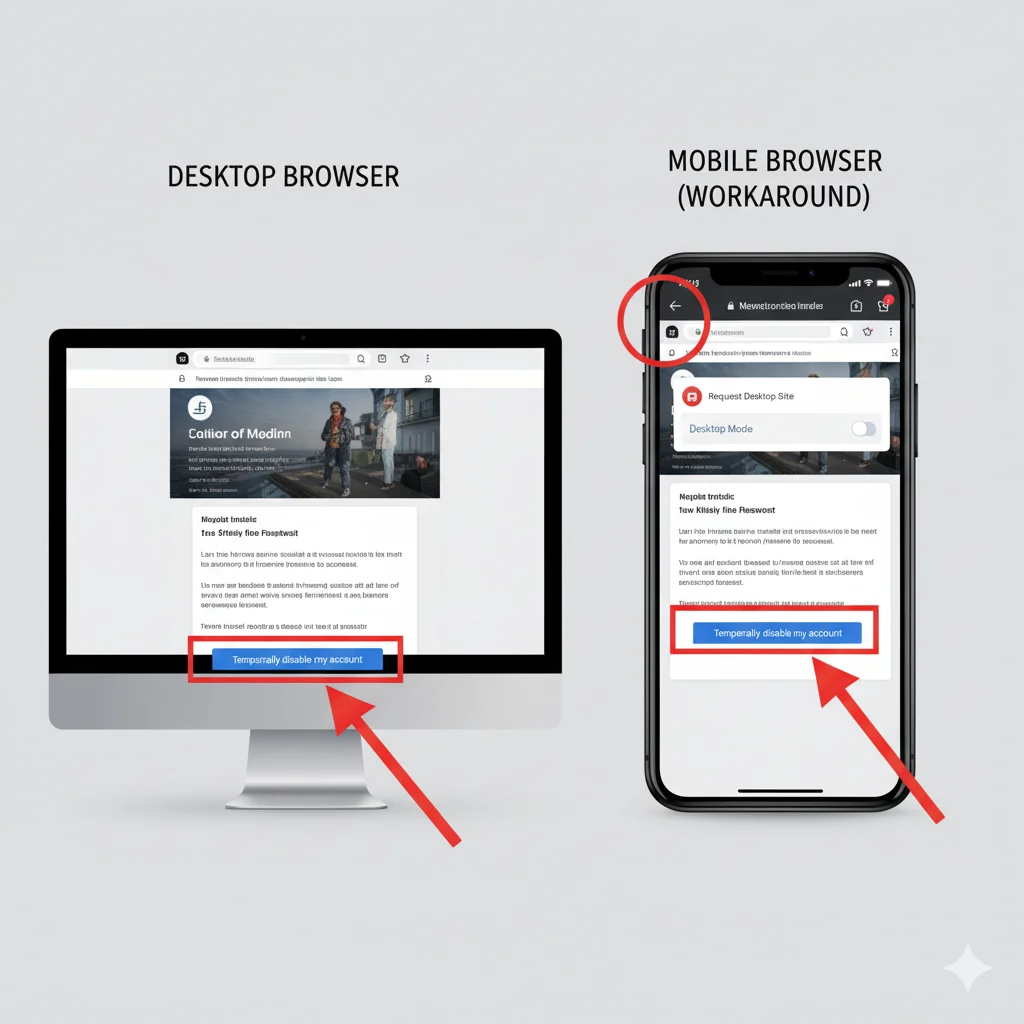
Method 1: Desktop Computer (Recommended – Easiest)
Step-by-Step Instructions:
- Go to instagram.com on your computer
- Log in → Click your profile picture → Profile
- Click Edit profile (not the mobile app version)
- Scroll to bottom right → Click “Temporarily disable my account”
- Select reason → Re-enter password → Click “Temporarily Disable Account”
Method 2: Mobile Browser (When Desktop Isn’t Available)
Critical: You must switch to desktop mode on your phone:
For iPhone Users:
- Open Safari → Go to instagram.com
- Tap aA icon → “Request Desktop Website”
- Log in and follow desktop instructions above
For Android Users:
- Open Chrome → Go to instagram.com
- Tap ⋮ (menu) → Check “Desktop site”
- Log in and follow desktop instructions
Alt-text: Side-by-side comparison of mobile browser settings showing how to switch to desktop mode on Safari and Chrome
How to Permanently Delete Instagram Account
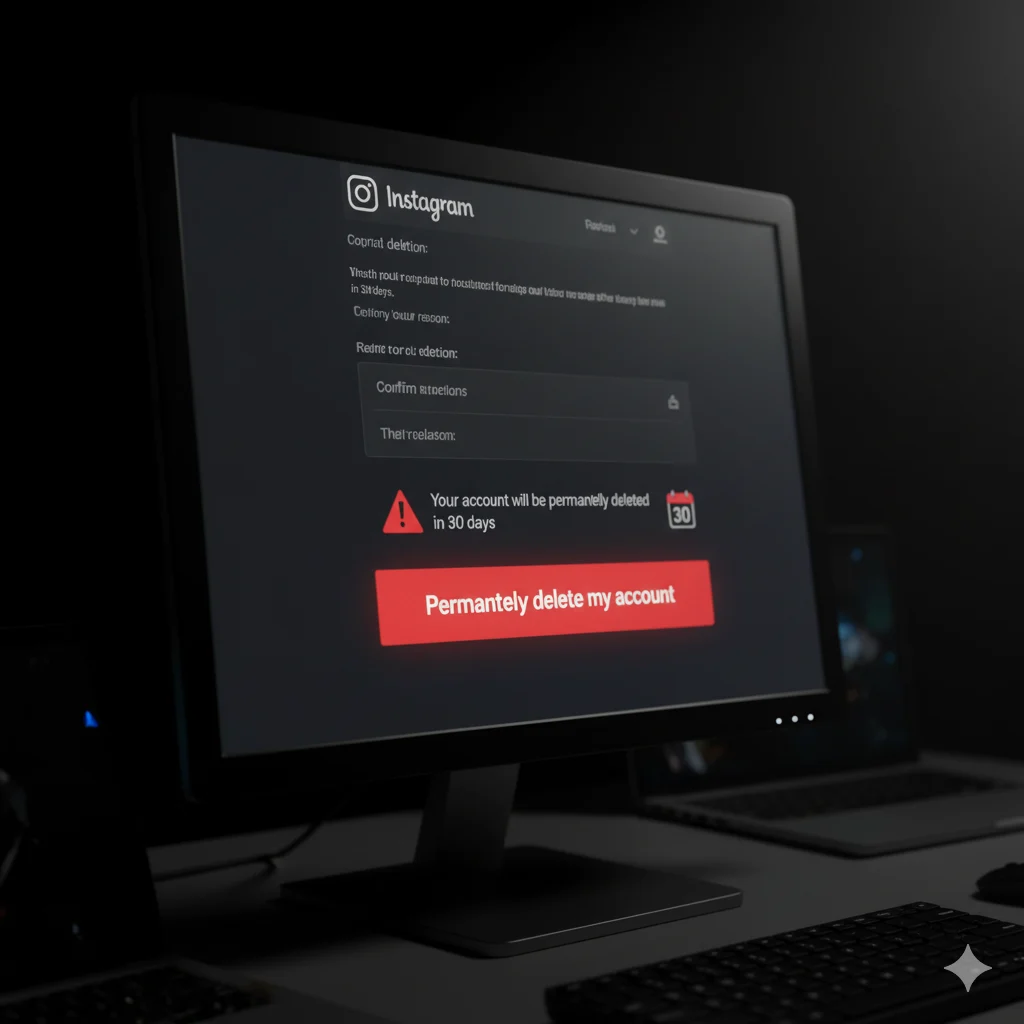
WARNING: This cannot be undone after 30 days!
Step-by-Step Instructions:
- Go to the official deletion page
- Log in if prompted
- Select reason from dropdown
- Re-enter your password
- Click “Permanently delete my account”
Important: You have 30 days to change your mind. Logging in during this period cancels the deletion.
Troubleshooting: Fix Common Deactivation Problems
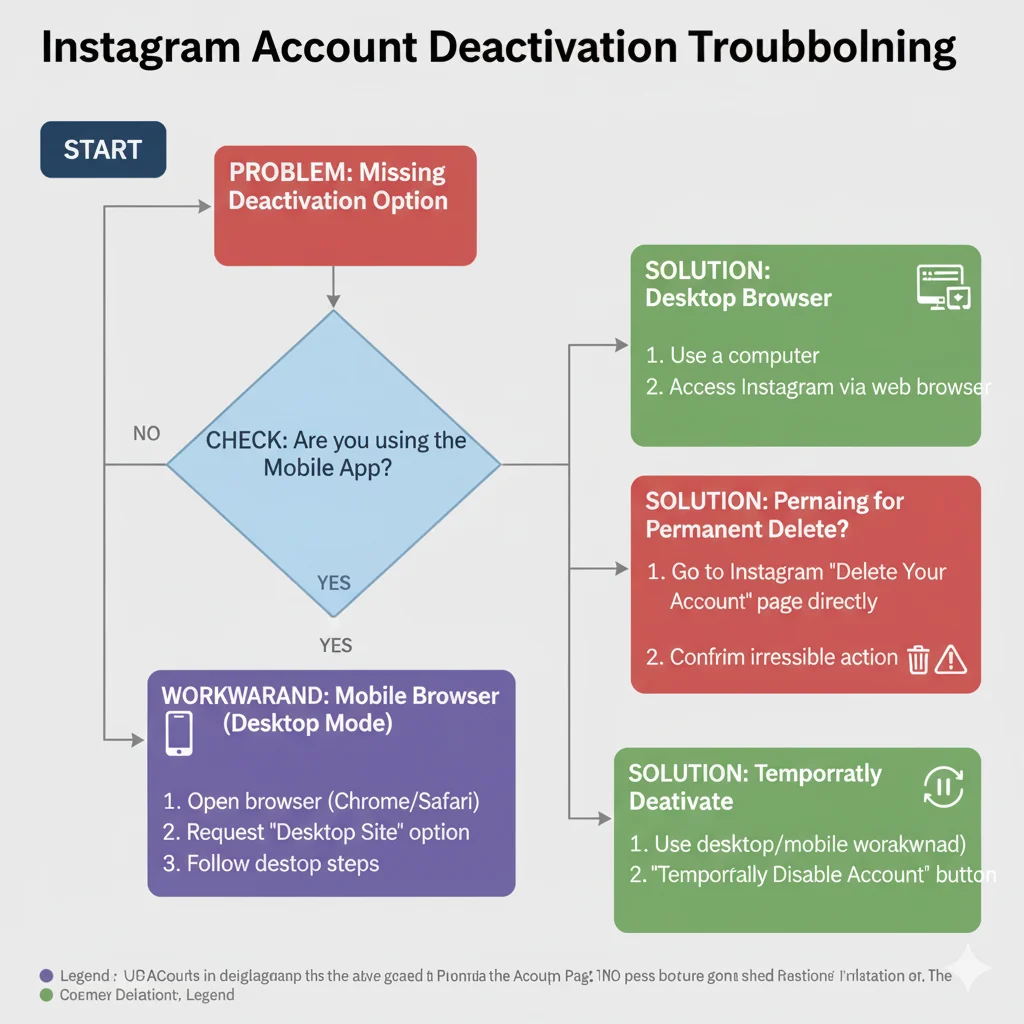
Problem: “Temporarily Disable Option Missing”
Solutions in Order:
- You’re in the mobile app → Switch to desktop browser or mobile browser in desktop mode
- Account too new → Wait 7 days after creation
- Recent reactivation → Wait 48 hours after reactivating
- Policy violation → Contact Instagram support
Problem: “I’m Using Desktop But Still Don’t See It”
Check These:
- You’re on a personal account (Business/Creator accounts have different steps)
- No active bans or restrictions on your account
- Try a different browser (Chrome, Firefox, Safari)
Problem: “What About My Linked Facebook Account?”
The Truth:
- Deactivating Instagram WON’T deactivate Facebook
- Your accounts are separate unless you choose to disconnect both
- To unlink: Go to Accounts Center → Accounts → Remove Instagram
Business & Creator Accounts: Special Considerations

If you have a Business or Creator account:
Before Deactivating:
- Download your insights and analytics data
- Cancel any active ad campaigns
- Remove any linked product catalogs
- Inform your audience if necessary
Deactivation Process:
- Convert to personal account first, OR
- Use the same desktop method as personal accounts
What Really Happens When You Deactivate
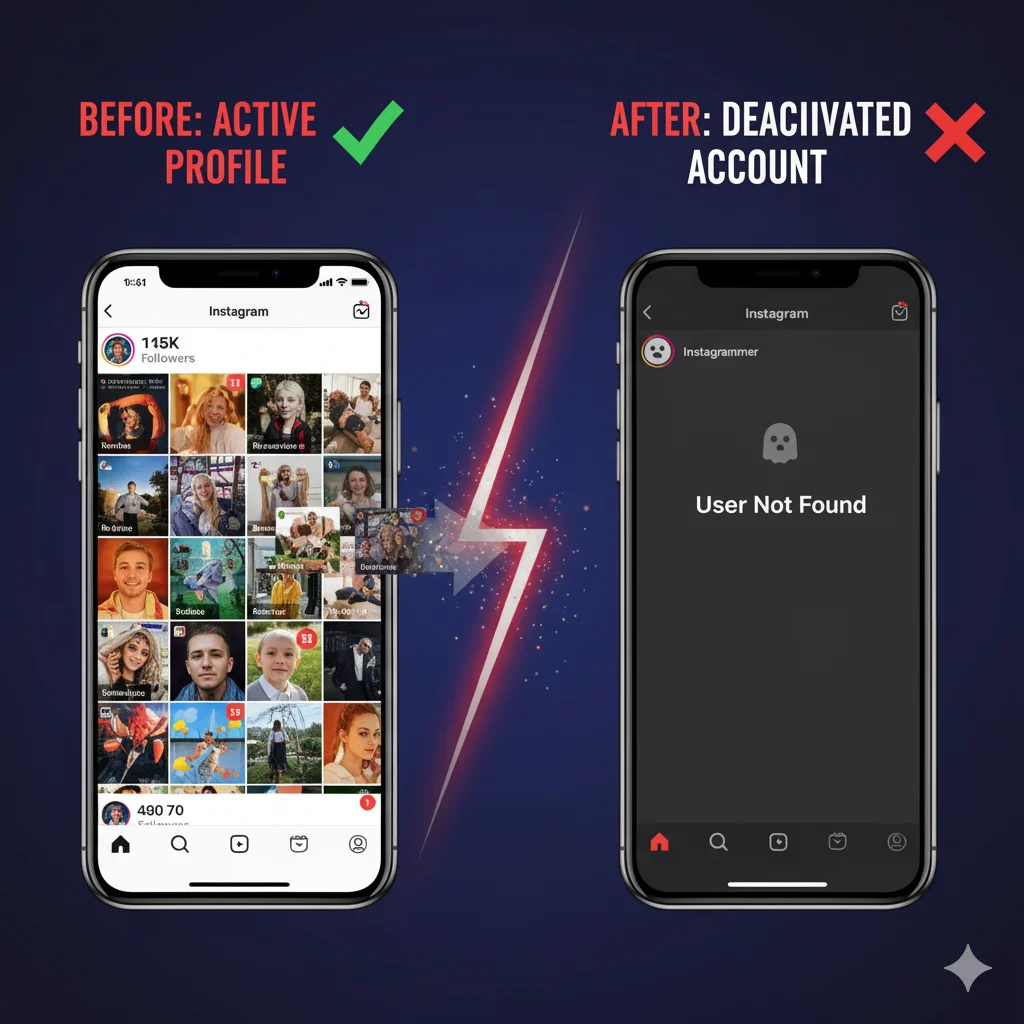
Immediately Hidden:
- ✅ Your profile and all posts
- ✅ Your comments and likes
- ✅ Your stories and reels
- ✅ Your name from followers’ lists
What Stays Visible:
- 📨 Direct messages (show as “Instagrammer”)
- 📸 Photos you’re tagged in (but your profile is inaccessible)
- 💬 Previous comments (username appears but isn’t clickable)
Alternatives to Full Deactivation
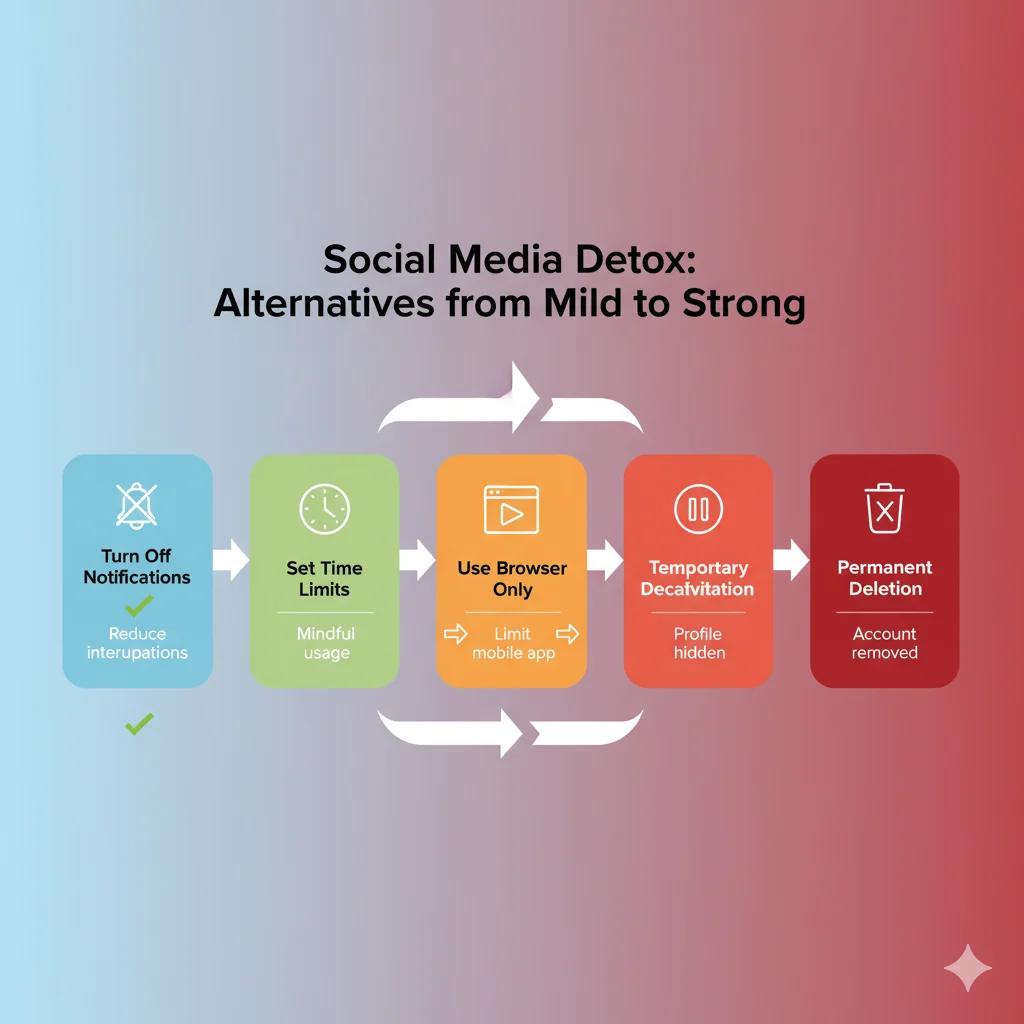
Not ready to fully deactivate? Try these first:
1. Digital Detox Mode:
- Turn off all notifications
- Set daily time limits (Screen Time on iOS, Digital Wellbeing on Android)
- Remove app from home screen
2. Account Cleanup:
- Unfollow accounts that don’t bring value
- Mute stressful accounts temporarily
- Archive old posts instead of deleting
3. Minimal Usage:
- Use Instagram via browser only (less convenient = less usage)
- Designate specific “checking times” once per day
Free Download: Instagram Deactivation Toolkit

Download Our Professional Resources:
- Pre-Deactivation Checklist (Don’t miss any steps!)
- Data Download Guide with Screenshots
- Account Connection Map (Facebook, WhatsApp, etc.)
- Social Media Break Planning Calendar
[Download Your Free Deactivation Toolkit]
Frequently Asked Questions (FAQ)
Q: Can I deactivate Instagram from the mobile app in 2024?
A: No. Instagram removed this feature from mobile apps. You must use a desktop browser or mobile browser in desktop mode.
Q: How long can I keep my account deactivated?
A: Indefinitely. Instagram doesn’t automatically delete deactivated accounts.
Q: Will deactivating Instagram affect my Facebook?
A: No. They are separate services unless you specifically choose to disconnect both in Accounts Center.
Q: What’s the difference between deleting the app and deactivating?
A: Deleting the app just removes it from your phone – your account remains active. Deactivating hides your account from everyone.
Q: I’m being harassed and need to deactivate immediately. What’s fastest?
A: Use the desktop method right now. Also block the harasser and report the content before deactivating.
Conclusion: Take Control Safely and Confidently
Whether you’re taking a mental health break or leaving social media permanently, you now have the power to do it right.
Your Action Plan:
- Immediately: Request your data download
- Today: Choose your method (temporary vs. permanent)
- This Week: Follow the step-by-step guide for your device
- Ongoing: Enjoy your newfound digital freedom
Remember: Temporary deactivation is zero-risk. You can always reactivate by simply logging back in. Many people find that even a 30-day break significantly reduces anxiety and improves focus.
Need support? Join our Digital Wellness Community to connect with others taking social media breaks and share your experience.

Mariah Cannon is the creative mind behind Pikuplab.com, crafting engaging, high-ranking content with expertise and precision.
With a talent for turning ideas into impactful words, Mariah brings value to every article.